Jaya9 Login Help and Account Recovery
Updated September 2026 · Checked against provider and operator sources
Most Jaya9 login failures come down to one of four things: a mistyped password, an old bookmark, a locked account or an OTP that never arrived. Each has a quick fix. Start with the Forgot Password link on the login screen, which sends an OTP to your registered mobile number and lets you set a new password in under two minutes without talking to anyone. If that does not solve it, the sections below cover the rest. Live chat is available without logging in.
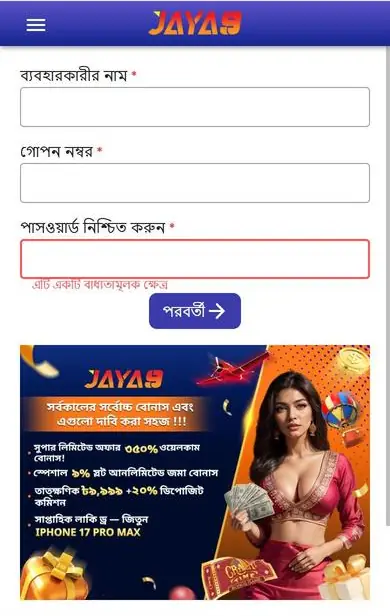
Log in correctly
Open the current Jaya9 site or the Android app, tap Login, and enter your username and password exactly as registered. Usernames are not case-sensitive; passwords are. Switch the keyboard back to English before typing, since a Bengali layout produces characters that look right and fail silently. On a shared device, untick Remember Me, because the next person to open the browser would otherwise land inside your account with the cashier and the balance one tap away. Three wrong attempts in a row can trigger a temporary lock, so stop and reset instead of guessing. Autofill from a browser sometimes inserts an old password saved for a previous address, and the fix is to type it by hand once and let the browser save the new pair. A new device or country triggers an OTP check even with the right password.
Reset a forgotten password
- Tap Forgot Password under the login form.
- Enter your username or registered mobile number.
- Type the OTP sent by SMS within the time shown.
- Set a new password of at least eight characters with letters and numbers.
- Log in with the new password.
The OTP goes to the number on the account, so a changed SIM means the code goes to the old number and you will need live chat to update it after an identity check. Do not reuse a password from your email or wallet. If the code does not arrive, wait two minutes and press Resend once. Several requests in a row invalidate the earlier codes. Copy the code from the SMS instead of retyping it. Passwords need letters and numbers and are case-sensitive. A password manager stores the new one and fills it correctly on the next login, which removes the most common cause of a repeat lockout. Reset codes are single-use.
Locked, restricted or closed accounts
A lock after repeated wrong passwords clears on its own after a short wait, or immediately after a password reset, and no contact with support is needed for that case. A restriction during verification lifts once the requested documents are approved, and the message on screen names the document. A closure for duplicate accounts or a self-exclusion period is not reversed by live chat before the period ends. Read the message you get. It tells you which of the three you are facing. Verification restrictions are the most common of the three. Upload the named document through the account and the restriction lifts on approval.
Old bookmark or outdated app
Jaya9 moves between web addresses from time to time, and an old bookmark can land on a page that loads a blank screen, loops back to itself or shows a login form that rejects every password because it is no longer connected to the live system. Open the current address from a source you trust and save it fresh. Update the Android app through the APK page if it has not been reinstalled in months. Clear the browser cache if a page half-loads. Switching from Wi-Fi to mobile data rules out a network block.
Get help without giving anything away
Live chat can reset a phone number, release a locked account after verification, or confirm that an account exists for a given number, and the agent can do all three from the username alone. Give the username, the device and the exact message you saw. Never send the password, the OTP or a wallet PIN, even if the person asking claims to be from Jaya9. Real support does not ask for them. If someone does, close the chat. Keep the chat transcript until the account is working again. Screenshots of the error help the agent more than a description of it.
After you are back in
Change the password once more if you suspect anyone else saw it. Check the transaction history and the registered phone number under account settings. Log out on any device you do not control. The security page lists the habits that keep an account safe, and once you are in, the cashier and bonus list are one tap away. Welcome back. A login from an unfamiliar device shows up as an OTP request you did not make, and that is the moment to change the password and tell live chat, not the next day. Then play. Check the bonus list for anything that expired during the lockout. Live chat can confirm no other device is still signed in.